InvoiceFlow — Invoice Review, Export & PO Matching
Extract invoice fields locally, verify them against the source and export confirmed data. Match orders and receipts when available.
Try Invoice Review
English / 日本語 · Sample data · Resets on refresh
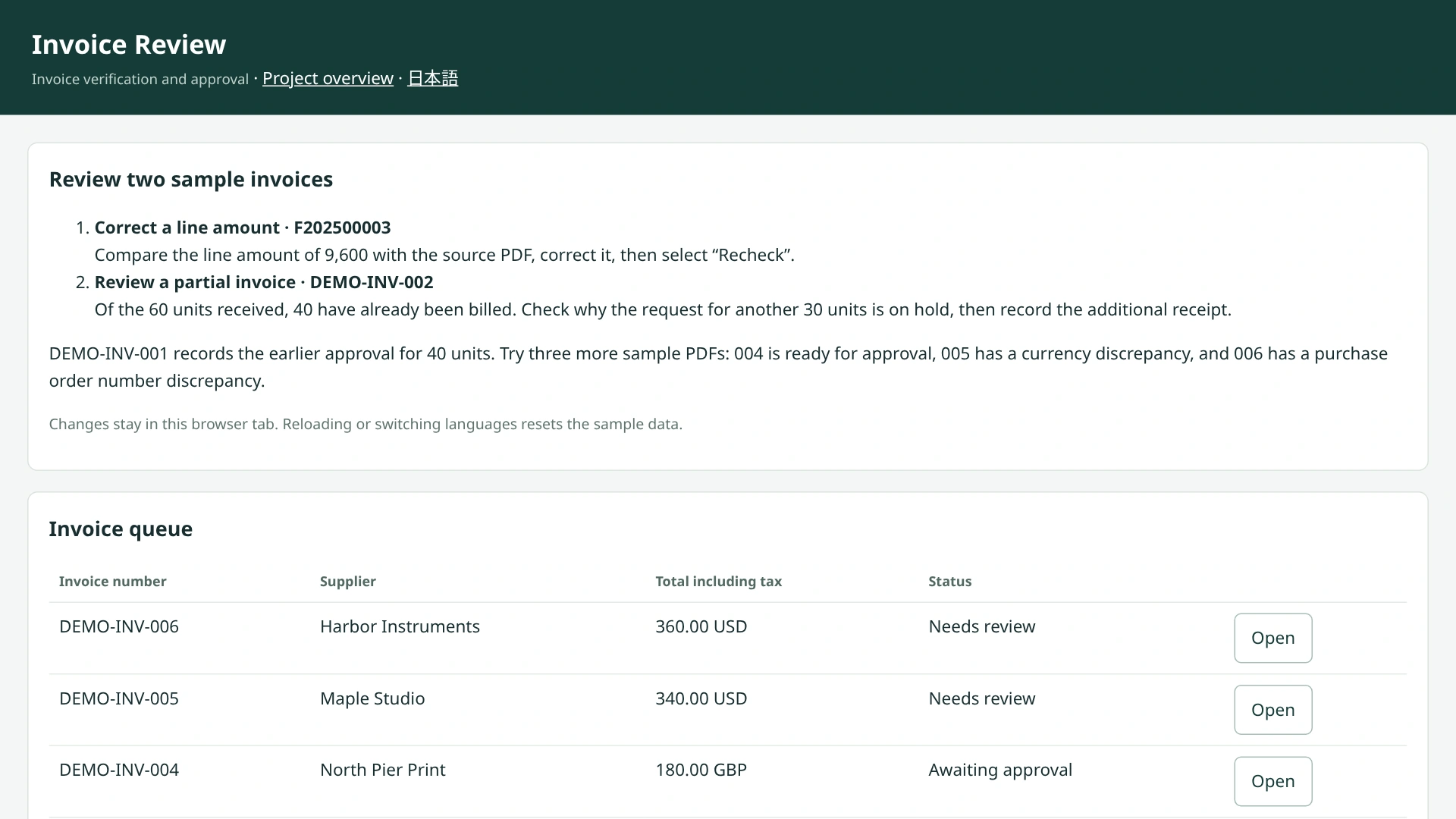
InvoiceFlow helps a reviewer verify invoice data before export and, when purchase orders are available, check it against purchasing records. It does not authorize or execute payments. Two examples show what holds an invoice back: an incorrect line amount (excl. tax) and a delivery that only partly covers the quantity billed.
Review and export
Open an invoice and compare its source with the extracted fields. Correct any errors, enter the reviewer and notes, and select Confirm and export CSV. This single action saves any changes, records the confirmation and downloads CSV. The source is open by default. The review screen no longer includes PO recheck, matching approval or receipt-registration controls. The matching engine described below remains available in the backend and CLI; CSV export does not approve payment.
From PDF to the invoice register
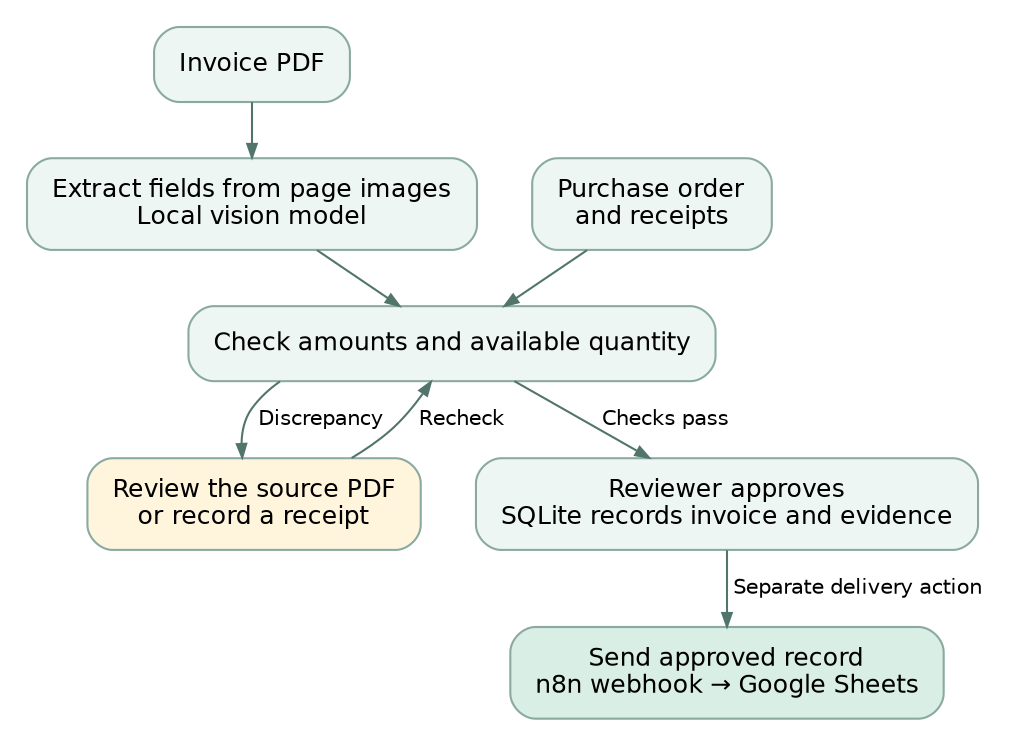
In the local workflow, Ollama reads rendered invoice pages. InvoiceFlow compares the extracted fields with the purchase order and, for three-way matching, recorded receipts and previously approved quantities. The browser demo begins at the review queue with saved sample data.
Inside Invoice Review
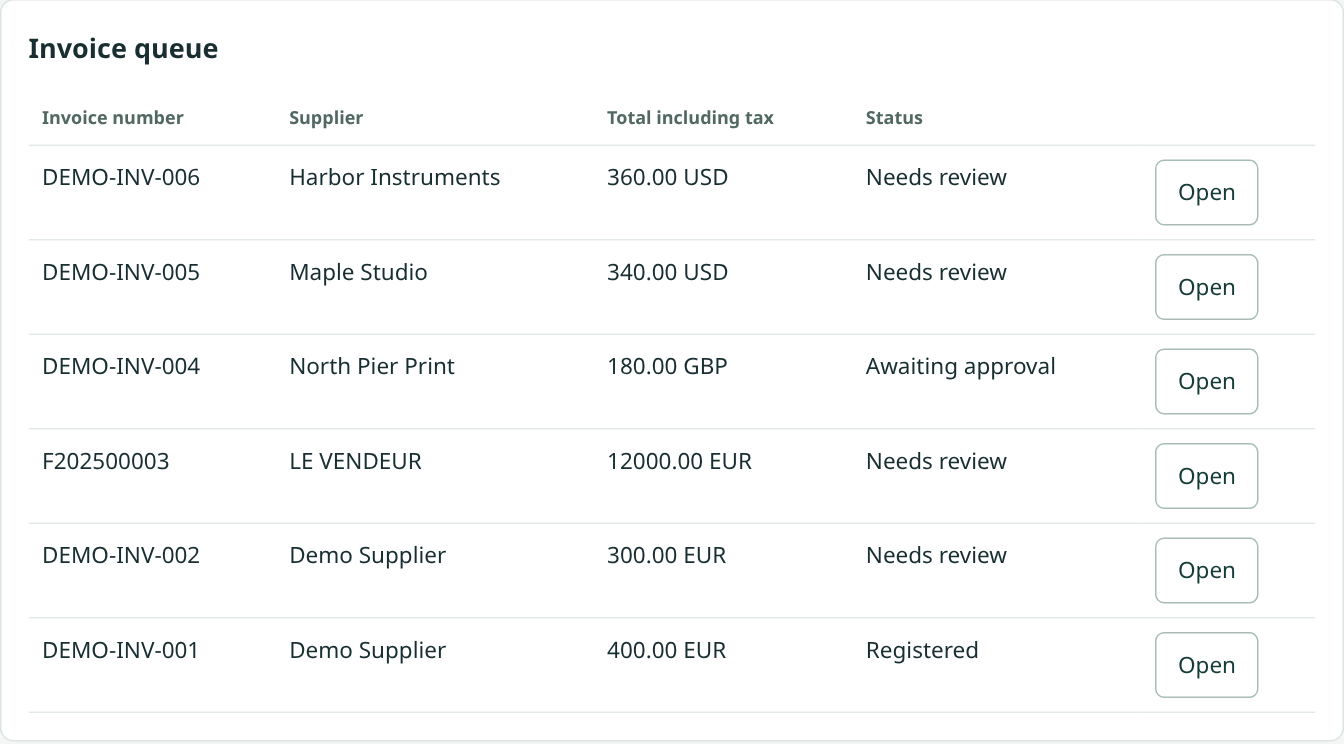
Open Invoice Review to explore fifteen invoices. Start with the two guided cases below. Then compare three fictional source PDFs with their extracted values: DEMO-INV-004 is ready for approval, DEMO-INV-005 has a currency discrepancy, and DEMO-INV-006 has a purchase order number discrepancy.
Compare different invoice layouts
Eight public template samples provide different source layouts. The first three cover: hourly services and expenses (Joe Shmoe, PDF), item-and-amount billing (Sparksuite, PDF), and a Japanese bank-transfer invoice (NI57721, PNG). Five further PDFs add negative discount rows (Big Corp), line-level discounts and mixed taxes (Test Company), service periods (famoser GmbH), multiline repair descriptions (Sammy Maystone), and product sections with subtotals (Azure Interior). The latest five samples use saved local Qwen output and recorded corrections. The earlier three remain manual transcriptions. The model outputs include unsupported guesses, schema errors and ambiguous amount columns; successful extraction does not mean the invoice is correct or approved. Model guesses remain visible until explicitly corrected; the original output is retained. No purchase orders accompany these samples. Reviewers can confirm the saved transcription and export CSV; PO matching remains unavailable and payment is not approved. Source links and license notices are available beside each invoice.
Confirm a transcription without a purchase order
Compare the saved fields with the original PDF or image, save any corrections and confirm the transcription with a reviewer name and reason. Missing source values can remain blank, with limitations recorded. Download the confirmed CSV to continue working in a spreadsheet. Invoice totals repeat on each line in this export and must not be summed across rows.
Transcription confirmation, PO matching and payment approval are shown separately. Confirmation preserves a snapshot and audit trail; a saved edit requires a new confirmation. A missing purchase order is shown as unavailable, not treated as a successful match. CSV export does not add an invoice to the matching-approved ledger or send it through n8n. The existing Google Sheets workflow remains a separate action for matching-approved records.
Correct a line amount (excl. tax)
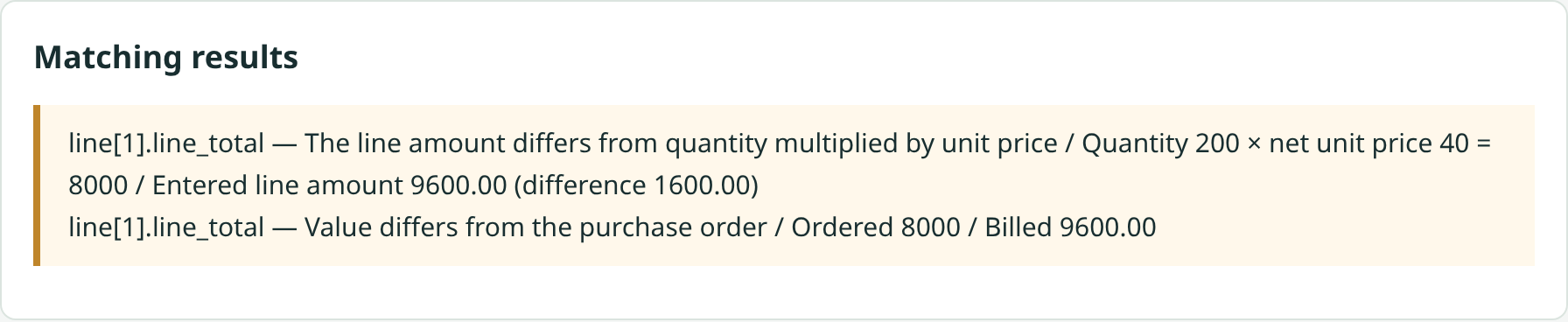
Open F202500003 and compare the first line with the sample PDF. The extracted amount is 9,600, but 200 units at 40 each gives 8,000. Correct the line amount (excl. tax) and run the checks again. Enter a reviewer name and reason to approve the match, then open the history to see both the extracted and approved values.
Release a partial invoice
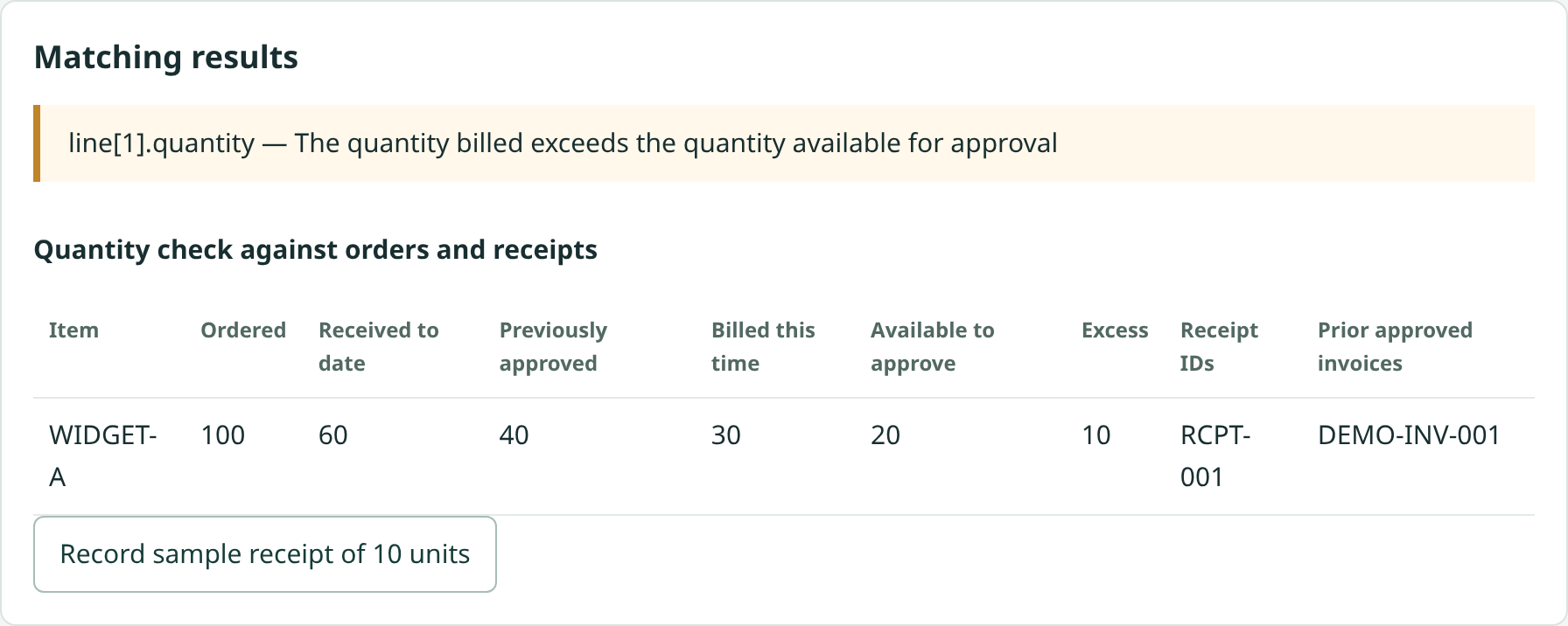
Open DEMO-INV-002. The purchase order covers 100 units, but only 60 have arrived. The earlier invoice DEMO-INV-001 already accounts for 40 of them. That leaves 20 available for a new invoice requesting 30.
Add the sample receipt for 10 more units and check how the available balance changes. Read the invoice total (incl. tax) from the PDF, enter it in the confirmation field, and approve the match. The approval history records the receipts and earlier invoice used in the decision.
Send an approved invoice to Google Sheets
Once the reviewer approves the invoice, the local sender reads its ledger entry and posts the approved values to an n8n webhook. The Google Sheets node uses the record key to append a new row or update the existing one on a sequential resend. The sender checks that the returned row matches the invoice fields and approval details.
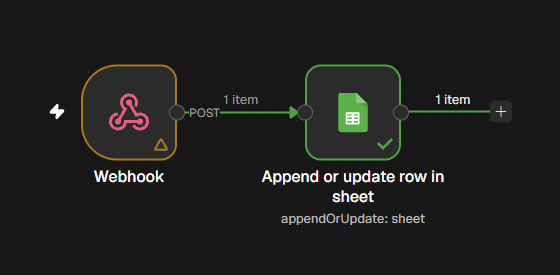
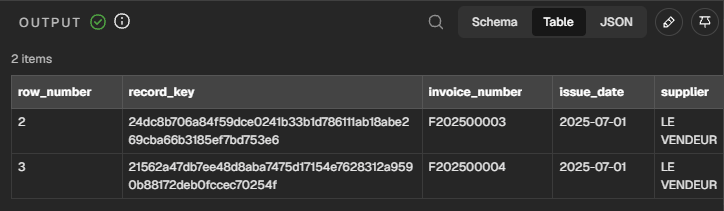
The webhook passes one approved record at a time to the Sheets node. Rows 2 and 3 of the register show F202500003 and F202500004, each for EUR 12,000 from LE VENDEUR. Both refer to purchase order PO202525478. The last two columns record who approved each invoice and when.

Open the invoice register in Google Sheets
A separate read-back workflow later returned F202500003 and F202500004 from rows 2 and 3. The fifteen records in the browser demo and the two rows in this local read-back belong to different sample runs.
Inspect the n8n test and column settings
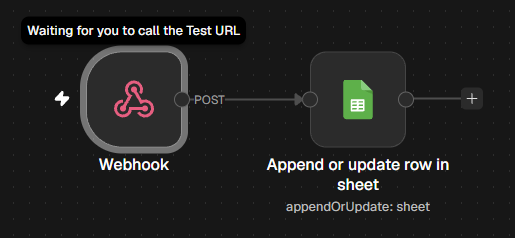
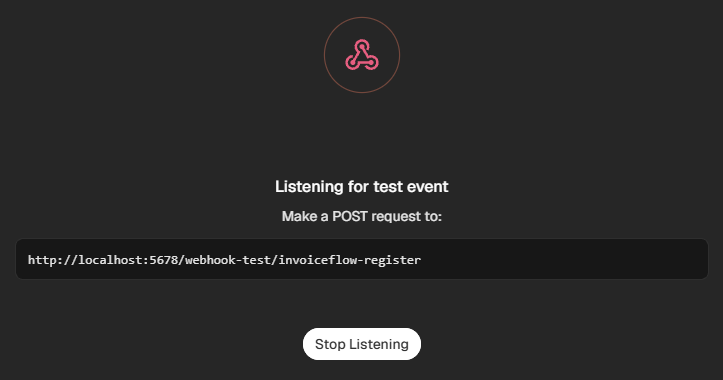
Waiting for a request. The test workflow pauses at the webhook. Opening the node shows the local endpoint listening for a POST.
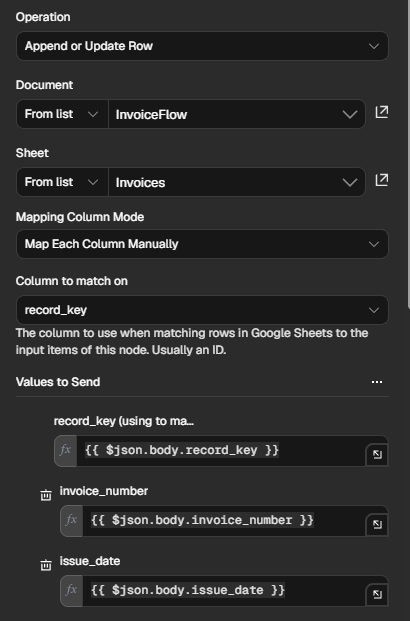
Matching a row. The write node targets the Invoices sheet and matches on record_key. A later send with the same key updates the matching row.
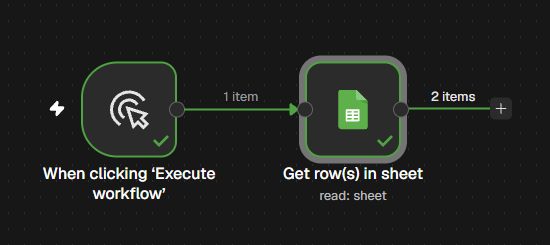
Checking the register. A manual trigger runs Get Row(s). Its two output items are the two rows shown above.
What the extraction checks showed
The evaluator compares selected fields with the Factur-X XML embedded in the official example PDFs. The model receives page images, and the evaluator reads the XML after inference. Explicitly asking for the amount excluding tax corrected two line amount (excl. tax)s in UC11, the sample used to develop the prompt. Two other examples already had matching line amount (excl. tax)s and remained unchanged. One complex example still had invoice-number and item-name differences.
Two related example invoices were also taken through the Google Sheets workflow. Approval and delivery are separate actions, and a sequential resend uses the same row key. These examples document the tested behavior. The current matcher requires unambiguous item names, and the extraction comparison covers a small set of public examples.
Tools & Technologies
Python · Ollama · Qwen 3.5 · SQLite · n8n · Google Sheets API · Playwright · GitHub Actions